
Read this article in: Portuguese (Português) · Spanish (Español)
If you are wondering how to update the router firmware, the procedure generally involves accessing the device’s administrative interface using a web browser and following the manufacturer’s instructions. Generally, the safe and effective process requires you to locate the firmware management area, download the latest file (always checking model compatibility), and execute the upload within the control panel. It is crucial, before anything else, to ensure that the router remains connected to power and that the process is not interrupted, as any failure can render the equipment useless.
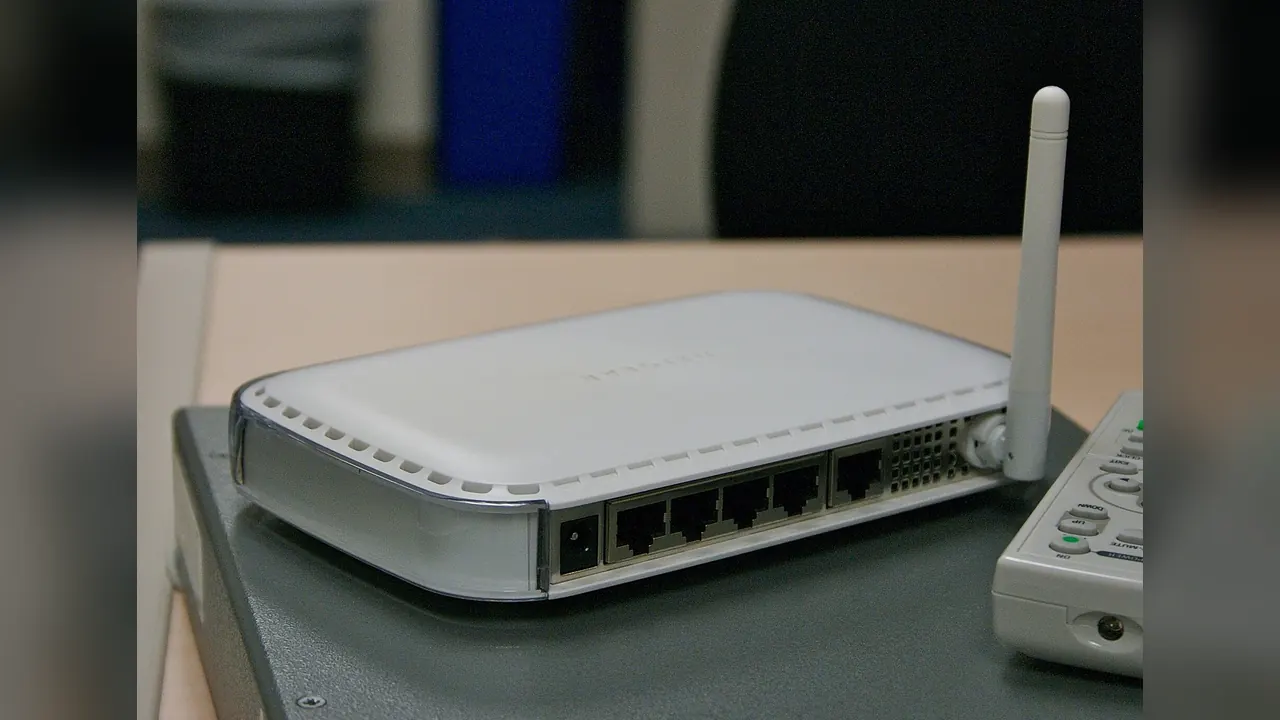
The importance of mastering this task goes far beyond a simple performance improvement. A router is a fundamental device that not only forwards data packets between computer networks but is truly responsible for the “traffic” that sustains the Internet. For example, it is typically a Layer 3 (network) device of the OSI Model, which makes it the central point for route decision-making. When multiple routers are used in interconnected networks, they use complex protocols to ensure that the data packet reaches its final destination, and the firmware is the software that orchestrates all these vital functions.
In this complete guide, we will unravel every step so that you can perform this maintenance safely and professionally. We will cover everything from understanding what firmware is and why updating is crucial, through the necessary prerequisites. Next, we will present the detailed step-by-step process for updating your router’s firmware, and we will also provide essential tips on how to verify the operation’s success and troubleshoot common problems, ensuring that your network always operates with maximum security and optimization.
Key Points
- Firmware is the internal operating system that manages the data flow, decoding and retransmitting internet signals.
- Updating is vital not only for compatibility (Wi-Fi 6) but mainly for correcting security vulnerabilities.
- It is mandatory to use an Ethernet cable and an uninterruptible power supply (UPS) to avoid interruptions that can cause the device to ‘brick.’
- Always use the exact model and serial number of the equipment to download the official manufacturer file.
- After updating, check the version, run speed tests, and reconfigure essential passwords and VPNs.
Understanding Firmware and Why Updating Is Crucial

Firmware is, in essence, the internal operating system of your router. It is not just a set of Wi-Fi settings; it is the brain that governs how your device communicates with the outside world. Its primary function is to receive internet signals from a modem, decode them, and then retransmit them in an organized manner through the antennas, ensuring that the signal reaches all points covered by the network area.
How Firmware Manages Data Flow
The complexity of firmware lies in how it manages data traffic, a process known as routing. When you browse a page or watch a video, your router doesn’t just transmit the signal; it is responsible for forwarding data packets from source to destination. To do this, it uses and maintains routing tables. The firmware executes processes and protocols for updating routes, specifying routing addresses and domains, and controlling essential metrics so that packets reach the correct destination.
It is important to understand the two forms of routing that firmware can manage: static routing and dynamic routing. In static routing, the administrator must manually configure every route. If there are any network changes that might affect that route, the administrator must reconfigure it. Dynamic routing, however, is much more efficient: after the administrator initiates the command, the knowledge of the routes is updated automatically. This update occurs through the constant exchange of information between neighboring routers on the network, always ensuring the fastest and safest path. This concern for data security and privacy is crucial, not only in the infrastructure but also in the most secure messaging applications.
The Evolution of Standards and the Need for Updates
In addition to packet routing, firmware is also responsible for maintaining compatibility with wireless connectivity standards. Historically, Wi-Fi standards were identified by complex codes, such as “802.11ac.” Today, the nomenclature has been simplified to terms like Wi-Fi 5 and, more recently, Wi-Fi 6, which represents the most current technology. The transition between these standards requires the firmware to adapt to support higher speeds and ensure compatibility among devices of different generations.
It is precisely because of this complexity that firmware updates are crucial. Updates not only improve compatibility with new Wi-Fi standards but, more importantly, correct security flaws. The digital world is a constant target, and manufacturers release firmware versions to fix vulnerabilities that could be exploited by third parties. Keeping the router’s internal operating system updated is the most important pillar of your network’s security, ensuring that it operates with maximum possible performance and protection.
Prerequisites and What You Will Need Before Starting
Before starting any firmware update procedure, it is essential that the user performs a complete preparation. This is not a process that allows for improvisation or rushing. Due to the critical nature of the firmware, which acts as the router’s internal operating system and manages complex processes like packet routing, any interruption during the process can render the device unusable. Therefore, organizing and checking each item listed below are mandatory and determining steps for the success and safety of the update.
Essential Items and Environment Preparation
To ensure the process is safe and professional, you will need to gather four categories of items: hardware, identification data, physical connection, and a stable environment. We detail the importance of each below:
- Physical Connection via Ethernet Cable: It is mandatory that the computer used for the update be connected to the router via an Ethernet network cable. Wireless connection (Wi-Fi) must be avoided during this procedure, as it is more susceptible to signal micro-interruptions that can compromise the integrity of the new firmware writing process.
- Computer with Stable Internet Access: Use a computer that is operating with stable power and has internet access to download the file and, subsequently, to access the router’s administrative interface.
- Equipment Identification Data: You must have the exact model and serial number of your router. This data is crucial because manufacturers of electronic equipment, such as those operating in locations like Los Angeles, California, U.S., develop specific firmware versions for every hardware combination. Failing to provide the correct model and serial number may result in downloading an incompatible file, causing irreversible failure.
- Official Firmware File: The firmware file must be downloaded exclusively from your router manufacturer’s official website. Never use unverified sources. This file is the core of the update and must match the model and version of your device exactly.
Power Security Is Non-Negotiable
Above all technical items, the most critical factor is the physical environment. It is absolutely vital that the location where the router and computer are connected is free from any risk of power outage. We strongly recommend using a quality UPS or surge protector. A power fluctuation or interruption, even if only for a few seconds, can cause an abrupt shutdown of the router’s operating system while it is writing the new firmware. This can lead to what is called “bricking,” rendering the equipment inoperable and requiring, in extreme cases, physical replacement.
With all these prerequisites in hand—the hardware connected by cable, the correct file, and, most importantly, guaranteed electrical power—you will be able to proceed with the step-by-step guide safely and professionally.
The complete step-by-step guide to updating the router’s firmware
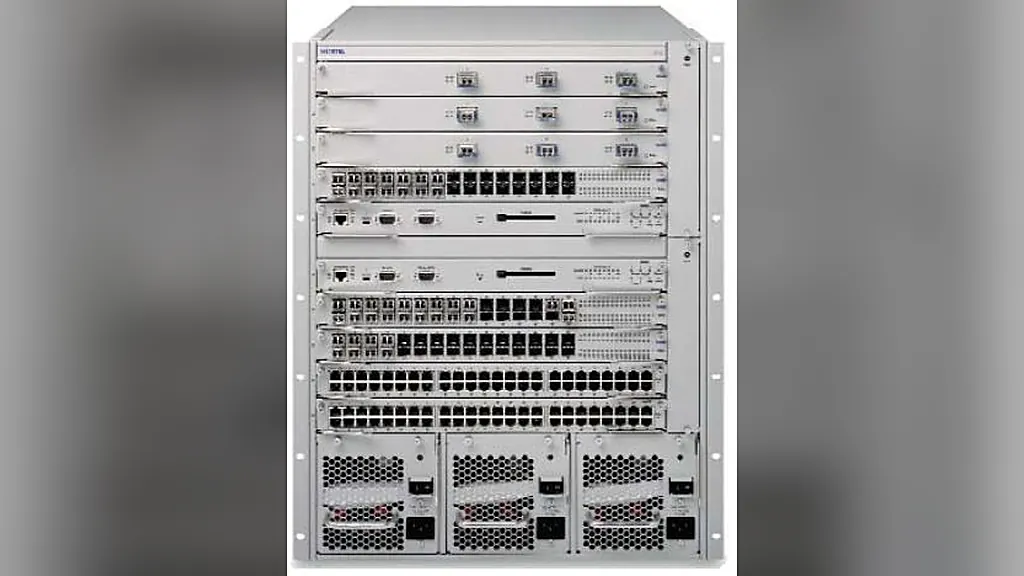
We have reached the central and most delicate moment of the guide: the firmware update procedure. This process, although seemingly simple in theory, requires maximum attention, as any interruption can compromise the entire router’s operation, affecting the control plane and the data forwarding plane. This is a precaution that applies to any electronic device, such as in a guide on updating a device’s firmware. Therefore, it is imperative that you follow every step with the utmost caution and without rushing. Remember that the success of this stage ensures that your equipment is running the most robust and secure operating system available, optimizing how it manages packet routing.
The technical step-by-step guide for firmware updating
With the official file in hand and the computer connected via Ethernet cable, strictly follow the guide below. Do not skip steps, and never power down the equipment during the process.
- Accessing the Administration Interface: Open a web browser and type your router’s default IP address (usually 192.168.1.1). Log in using your administrator credentials.
- Locating the Update Function: Within the control panel, navigate to the area responsible for system maintenance. The most common path is System > Update Firmware.
- Uploading the File: Click the upload button and select the official firmware file that you previously downloaded from the manufacturer’s website. Double-check that the file is correct for your router model.
- Starting the Process: Confirm the upload and click “Apply” or “Update.” At this point, the router will begin reading and installing the new operating system.
- Waiting and Maintaining Stability: It is crucial that you do not interfere with the process. Do not power down the router, do not disconnect the Ethernet cable, and do not close the browser tab. The process may take a few minutes, as the system is rewriting its internal protocols.
- Automatic Restart: Upon completing the installation process, the router should restart automatically. This restart is essential for the new firmware to be loaded into memory and begin managing data traffic with the new configurations and security improvements.
After restarting, the equipment will be running the updated firmware. If the router exhibits any unexpected behavior after this procedure, it is recommended that you check the manufacturer’s manual or consult the troubleshooting section. By completing this task, you ensure that your network system is operating with maximum efficiency, ready to handle the complexities of static and dynamic routing in any connectivity environment.
Checking for Success and Optimizing Network Performance
The router has automatically restarted, and you officially have the updated firmware. However, the update process doesn’t end when the lights return to normal. It is essential to follow a series of checks to ensure that the new software is operating with maximum stability and performance. Treat this final step as a sanity test of your network system.
Verifying Firmware Status
The first step is to confirm that the equipment is actually running the latest version. Access the router’s administration interface again by typing the default IP address (usually 192.168.1.1) into your browser. Navigate to the system status or firmware information section. Verify that the displayed version number exactly matches the version you just installed. If the number is incorrect, or if the panel is displaying error messages, it is advisable to seek manufacturer support, as there may have been a failure in applying the new code.
Performance and Stability Testing
With the status confirmed, it’s time to measure performance. Run a complete speed test. The goal is to compare current metrics (download speed, upload, and ping) with the values you had before the update. Remember that updated firmware can optimize internal processes, such as maintaining routing tables, ensuring that packet forwarding is more efficient. If you also need to know how to update an SSD’s firmware, it is important to be careful with the details. If you notice a significant drop in performance, it may be necessary to review advanced settings, such as routing protocols, to ensure the router is using the most optimized path.
Reconfiguring Essential Settings
A critical and often forgotten point is the reconfiguration of access credentials. Many firmware updates, due to security or incompatibility issues, can reset various network settings. It is imperative that you check and reconfigure:
- Wi-Fi Passwords: Check the network name (SSID) and the wireless access password.
- Virtual Networks (VPNs): If you use virtual private networks or VLANs, the update process may have disabled or altered the access rules. Reenter all keys and connection parameters.
- Remote Access: If you have access to the router administration outside the home, verify that the remote access ports and protocols are still correctly mapped.
By completing these checks, you will have ensured that not only is the software updated, but that all critical services and connections—from data flow to routing protocols, such as OSPF or BGP—are operating as expected. Maintaining these details ensures that your equipment’s maximum potential is delivered to the end user.
Troubleshooting and Common Errors During Updates

Troubleshooting and Common Errors During Updates
Firmware updates are highly sensitive procedures. Although risks are minimized by following all steps, failures can occur for various reasons—from power issues to software incompatibilities. It is essential to remain calm and follow the diagnostic steps below. Correctly identifying the error is the first step toward resolution.
Physical and Connection Checks
If, after starting the update process, the equipment exhibits unexpected behavior, always start with the simplest checks:
- Router Frozen or Won’t Restart: If the control panel is frozen and unresponsive to commands, the first step is to perform a physical reset. Disconnect the power cable from the router’s power source and wait at least 60 seconds. Then, reconnect it and wait the necessary time for the equipment to fully initialize.
- Wired Connection Failure: If the update is interrupted or fails with network error messages, check that the Ethernet cable is firmly connected to both your computer’s LAN port and the router’s input port. A loose connection is a common cause of data interruption.
Software Issues and Incompatibility
Many update errors are related to improper preparation of the file or the environment. Extra caution is required:
- File Error or Incompatibility: This is one of the most common failures. The error may indicate that the firmware file you are trying to install is not intended for the exact model of your router. It is crucial to check the manual or the manufacturer’s website and ensure that the firmware version is compatible with your equipment’s serial number and model. Never use files from unofficial sources.
- Power Interruption: The update process requires guaranteed electrical power. Any power outage in the middle of the process can corrupt the router’s operating system. Always prefer using an uninterruptible power supply (UPS) to protect the equipment during the procedure.
The Risk of “Bricking” the Router
It is essential to understand the concept of “bricking”. This term refers to a situation where the router becomes an inoperable device, incapable of starting up or communicating, due to a critical failure during firmware flashing. If, after performing physical resets and verifying file compatibility, the router remains completely non-functional—with no lights or no response to any connection attempt—it may be bricked. In this scenario, user intervention is unfeasible, and it is mandatory to contact the manufacturer’s specialized technical support or a qualified network technician. Never attempt to force the use of incompatible equipment to solve this problem.
Router Security and Maintenance Best Practices
After completing the firmware update process, the router’s security work is not finished. Network maintenance is a continuous cycle that requires constant vigilance from the administrator. Adopting good security and maintenance practices not only increases stability but drastically elevates the level of protection against unauthorized access and network vulnerabilities.
Strengthening Digital Security
The starting point for any secure network is access control. It is imperative that, immediately after installing the router, you change the default administrator credentials. These factory logins and passwords are known and represent the easiest vulnerability to exploit. Furthermore, the wireless encryption protocol is a pillar of defense. If your equipment supports it, use WPA3. This is the most recent and robust encryption standard, offering superior layers of security compared to previous protocols, ensuring that data transmitted via Wi-Fi remains unreadable to third parties.
Physical and Software Maintenance
A router’s security is intrinsically linked to its location and its software. In terms of physical placement, the ideal location for the equipment is a central and elevated point in the environment. Placing it in a high and central area maximizes signal propagation, minimizes dead spots, and ensures uniform coverage throughout all rooms.
In the realm of software, the golden rule is continuous firmware updates. Although the update process is a delicate procedure, it is the most effective way to correct security flaws (vulnerabilities) that manufacturers discover after release. Keeping the firmware always updated is a preventative measure, as it ensures that the router is utilizing routing protocols and packet forwarding processes with the latest built-in security patches.
It is important to remember that, just like advanced routing protocols—such as OSPF or BGP—which require constant knowledge of routes to determine the shortest or best path, your router also needs constant maintenance. The security of your network depends not only on strong passwords but also on proactive hardware management, ensuring the device always operates with the highest level of efficiency and protection.
Summary of Best Practices
To ensure a robust network, follow this maintenance checklist:
- Credentials: Immediately change all default administrator passwords.
- Encryption: Prioritize using WPA3, if your hardware is compatible.
- Firmware: Do not neglect updates; they are security patches.
- Location: Place the router in a central and elevated location to optimize the signal.
Frequently Asked Questions
What happens if I update the wrong firmware on my router?
If you download an incompatible file, the result could be irreversible equipment failure. It is crucial that the file exactly matches your router’s model and serial number, as manufacturers develop specific versions for every hardware combination.
Is it dangerous to update the router firmware? Can I lose my data?
The risk is not data loss, but rendering the device unusable. Any power interruption or interruption during the new firmware writing process can cause an abrupt shutdown, leading to what is called ‘bricking,’ making the equipment inoperable.
What is the difference between resetting the router and updating the firmware?
Updating the firmware means replacing the internal operating system to improve performance and security. Resetting, on the other hand, generally restores the network settings to factory defaults. Both actions require attention, as they can disable or change access rules.
How often should I update my router firmware?
It is recommended to keep the internal operating system always updated. Updates are released by manufacturers to correct security vulnerabilities and ensure compatibility with the latest connectivity standards, making it a pillar of your network’s security.
How do I know if my router is compatible with the new firmware?
You must download the file exclusively from the manufacturer’s official website. To ensure compatibility, it is mandatory to have your router’s exact model and serial number, as manufacturers develop specific versions for every hardware combination.
Conclusion
Understanding firmware is essential to grasping the heart of your home network. Far from being just a set of Wi-Fi settings, it acts as the operating system that manages the complex flow of data, from static to dynamic routing, and ensures compatibility with advanced standards like Wi-Fi 6. Keeping this internal system updated is not a luxury, but rather the most important pillar of your network’s security. Updates are the primary mechanism for correcting security vulnerabilities and optimizing performance, ensuring that your equipment operates with maximum efficiency and protection against external threats.
For this update process to be successful, rigorous preparation is non-negotiable. It is mandatory that the procedure be performed using a physical Ethernet cable connection, and that the environment be fully protected against power fluctuations or outages, requiring the use of an uninterruptible power supply (UPS). Furthermore, success depends on accurately collecting data, such as the router’s model and serial number, and exclusively downloading the official manufacturer’s file. Any deviation from these precautions can compromise the device’s integrity.
Therefore, by following every step with maximum caution—from using the cable to monitoring the power—you will ensure that your router not only maintains connectivity but also operates with the highest level of available security and performance. Remember: the discipline in preparation is what transforms a complex technical procedure into a professional and completely safe maintenance act.