

Read this article in: Portuguese (Português) · Spanish (Español)
To start using Dropbox, you simply need to install the app on your devices and utilize the central concept of cloud synchronization: you deposit any file into a designated folder, and the service automatically handles the upload and keeps that content updated on all devices and platforms where you are logged in. Essentially, Dropbox transforms the cloud into a centralized digital vault, ensuring that your documents, photos, and projects are always accessible, no matter if you are working on a laptop, a tablet, or a phone. It is a system that eliminates the worry of losing files and guarantees that all collaborators are always working with the most recent and correct version of the material.
Dropbox’s relevance in the digital landscape is proven by its growth trajectory and stability. Founded in May 2007 by MIT students Drew Houston and Arash Ferdowsi, the service quickly established itself as a pillar of cloud storage. Its popularity grew exponentially, surpassing the 50 million user mark in October 2011. This ability to scale and maintain the trust of millions of users across different industrial sectors attests to its position as an essential tool for collaboration and data backup in the modern era.
In this comprehensive guide, we will uncover every aspect of how to optimize your use of Dropbox. We will cover everything from the basics of what a cloud service is and why you need one, through the initial setup and installation process. Next, we will address advanced synchronization and sharing techniques across multiple platforms, in addition to tutorials on advanced management, such as versions and collaboration workflows. To ensure you are always secure and efficient, the article also includes sections on common troubleshooting and security tips, covering usage across various operating systems.
Key Points
- Cloud storage centralizes files online, eliminating dependence on physical HDDs and flash drives.
- Synchronization mirrors the most updated file to all devices, ensuring continuous access.
- The freemium model allows you to test the service for free, but paid plans are necessary for advanced features.
- Security is high, utilizing AES-256 encryption and support for two-factor authentication.
- It is possible to recover deleted files for up to 30 days, with the option to extend the period with paid plans.
What Is and Why You Need a Cloud Service
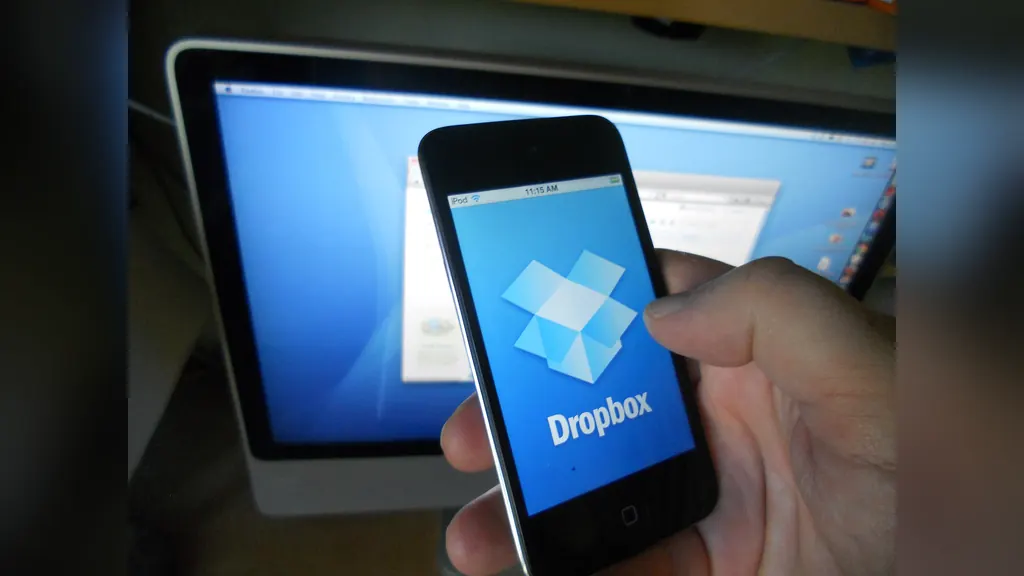
The need for a cloud service, like Dropbox, dates back to a paradigm shift in how we store and access information. Simply put, cloud storage (or cloud storage) is a model that allows you to deposit your files in a centralized online location, rather than relying exclusively on external HDDs, flash drives, or local hard drives. This concept is the core of cloud computing and represents a revolution in data management, as it transforms physical and localized storage into a virtual resource, accessible anywhere on the planet, provided there is an internet connection. To better understand the impact of this transformation, it is essential to know the story of Drew Houston and Dropbox.
How Cloud Synchronization Works
The operating principle is based on synchronization. When you use a service like Dropbox, you are not just saving a file on a computer; you are depositing that file into a designated folder, whose content is then mirrored to the company’s remote servers. The magic happens because these servers ensure that the same file, with the most updated version, is available on all devices where you installed the service—be it a Windows notebook, a Mac, an iOS tablet, or an Android smartphone. This eliminates the frustration of losing a file on a forgotten flash drive or having to manually transfer data between multiple devices.
The great advantage of cloud storage is portability and security. If your computer breaks, your data remains intact and accessible online. This centralization ensures that you always have the complete set of information, allowing work to be continuous and collaborative, regardless of the user’s physical location. Furthermore, the evolution of the service has incorporated advanced tools, such as Dropbox Paper, a collaborative document editor, demonstrating how the cloud has become a work ecosystem, and not merely a file storage location. This ability to support digital environments is what also enables experiences such as cloud online gaming.
The Access Model and Cost-Benefit
To ensure massive adoption, services like Dropbox operate under a model known as freemium. This means the service is free to start, but offers limited capabilities. For example, basic users (Dropbox Basic) usually receive a defined amount of free storage, such as the initial two gigabytes. This free option allows the user to test the power of cloud synchronization. However, for professionals, teams, or individuals who need greater storage capacity or access to advanced collaboration and version management features, the platform offers paid subscriptions.
In summary, you need a cloud service because it transforms data management from a physical and restricted task into an unlimited digital resource. It gives you the freedom to work on any device, ensuring your files are always updated and secure in a single remote point of control.
📌 Cloud Service Advantages and Models
- Portability: Access your files from anywhere in the world, just requiring an internet connection.
- Data Security: If your physical equipment breaks, your data remains intact and accessible online.
- Smart Synchronization: Ensures the most updated file is available on all your devices.
- Advanced Collaboration: Allows for teamwork and the use of digital tools within a single ecosystem.
- Freemium Model: Offers a free version for testing, with paid options for professional features.
Setting Up Dropbox: Prerequisites and Initial Installation
Using Dropbox begins with establishing a solid infrastructure on your devices. For the concept of synchronization to work smoothly, it is essential to install the service’s native application on every platform you use. Dropbox offers comprehensive support, ensuring your files are accessible whether you are a user of Microsoft Windows, Apple macOS, or mobile operating systems like iOS and Android. Furthermore, the platform also features a web interface, allowing access from various computers.
Installing and Configuring the Cloud System
The initial setup process is simple but requires attention to detail, especially regarding account connection and synchronizing your most important data. Follow these steps to ensure your cloud environment is fully optimized:
- Download the App: Visit the official website and download the app specific to your operating system (Windows, macOS, Linux, Android, or iOS).
- Install and Log In: Run the installer and log in for the first time, linking the app to your Dropbox account.
- Define Sync Folders: The system will ask you to choose which local folders should be synchronized with the cloud. This step is crucial to ensure that the correct files are safeguarded.
- Configure Camera Upload: If you use smartphones or cameras, activate the automatic photo and video upload feature. This feature automatically sends media from cameras, tablets, SD cards, or smartphones to a dedicated folder called “Camera Uploads.”
- Manage Initial Space: When activating camera upload, Dropbox offers extra initial space, starting with 500 megabytes for the first batch of photos, which can increase up to 3 gigabytes as you use the method for more media.
- Check Performance: For very large files, Dropbox offers the “streaming sync” feature, introduced in July 2014, which improves download or upload time by up to two times (2x).
After basic synchronization, it is highly recommended to strengthen your account security. In terms of security, Dropbox has already made available the “Universal 2nd Factor,” which uses USB keys for two-factor authentication, a feature announced in August 2015 that significantly elevates your data protection. Remember that, for best performance, it is important to ensure that the application is always connected to the internet and that synchronization is active in the background.
Syncing and Sharing Files Across Different Platforms

The core of using Dropbox lies in the simplicity of synchronization. To start using the service, simply drag and drop any file—be it a document, an image, or a video—into the designated local Dropbox folder on your computer. The system is smart: it automatically detects the new content and uploads it to the cloud service. This functionality ensures that the file is not restricted to your device; it is immediately available to any other computer or device that also has the Dropbox software installed, keeping the content updated at all access points.
Syncing Versus Sharing
It is essential to understand the difference between syncing and sharing. Syncing means keeping identical copies of folders and files across your devices. If you edit a document on your laptop, it will automatically update on your tablet and your smartphone. Sharing, on the other hand, is the act of granting access to a specific file or folder to other people, without necessarily integrating it into your local workflow. To share content, the process is straightforward: right-click the desired folder, select the “Share” option, and then choose “Generate Link.” This link will allow collaborators to access the material. When setting up sharing, you have total control over permissions, being able to define whether access is only for “Viewing” (read-only) or if the collaborator has “Editing” permission.
In terms of security and performance, Dropbox operates with advanced protocols. Data synchronization is performed using SSL transfers, and storage is protected by Advanced Encryption Standard (AES)-256 encryption. Furthermore, the system is optimized for efficiency: when a file in your local Dropbox folder is modified, Dropbox does not need to upload the entire file. It only sends the altered chunks, drastically optimizing synchronization time. For advanced users, the service offers robust recovery features, allowing you to restore deleted files for up to 30 days, with the option to extend this period to one year with paid plans.
For collaborations in local environments, Dropbox also offers LAN Sync. Instead of sending data through global servers, computers on the same local network can exchange files directly with each other. This feature, which uses the discovery protocol via UDP port 17500, can significantly improve synchronization speeds in a corporate environment. Your files are handled with care, and the service also includes mechanisms to prevent the sharing of copyrighted data by checking the hash of files in public or shared folders against a blacklist of protected material.
Advanced Management: Folders, Versions, and Collaboration
Advanced use of Dropbox transcends mere file synchronization, positioning it as a true data management hub. It is important to understand how this evolution occurred, especially when considering its impact on cloud technology. One of the most valuable features for those dealing with large volumes of information is granular control over what is synchronized. You do not need to transfer your entire hard drive to the cloud; it is possible to perform a selective selection of folders, ensuring that only active projects and documents occupy space in the cloud and on your devices. Additionally, control over time is fundamental. Dropbox offers a robust version history, a feature that allows you to recover files to previous states. In scenarios where human error or accidental alteration compromises an important document, the version history is the security mechanism that guarantees the traceability and recovery of content in its original integrity.
Collaboration and Workflow Integration
Real-time collaboration capability is where Dropbox established itself as a productivity tool. The evolution of this feature is remarkable. Starting with the collaborative notes service Dropbox Notes, launched in beta in April 2015, the platform demonstrated its intent to compete with major document players. This development culminated in the launch of Dropbox Paper, a collaborative document editor that entered open beta in August 2016 and was officially launched in January 2017. Dropbox Paper was designed to be more than a simple word processor; it is described as a content hub, combining online documentation, task management, and collaboration. Its great strength lies in its ability to import and allow editing and collaboration across various file formats from other platforms, such as Google and Microsoft.
Advanced Features and User Ecosystem
The Dropbox ecosystem is rich with functionalities that go beyond what is native. Historically, the service has offered sophisticated tools, such as Carousel, a photo and video gallery launched in April 2014. Carousel combined Dropbox photos with phone photos, organizing them by event and date, although it was deactivated in December 2015, with its main functionalities reintegrated into the central application.
Furthermore, Dropbox technology is an engine for user creativity. The community has developed numerous “user-created projects,” expanding basic functionality. Such uses include sending files directly to Dropbox via Gmail, syncing chat logs from instant messengers, or even using the service for free web hosting. This adaptability ensures that Dropbox remains relevant, serving as a digital infrastructure that adapts to the user’s most specific needs, from corporate document management to complex personal projects.
🕒 Evolution of Dropbox’s Advanced Features
- April 2014 — Launch of Carousel, a photo and video gallery that combined Dropbox photos with phone photos.
- April 2015 — Launch of Dropbox Notes in beta phase, demonstrating the intent to compete with major document players.
- December 2015 — The Carousel feature was deactivated, but its main functionalities were reintegrated into the central application.
- August 2016 — Open beta launch of Dropbox Paper, a collaborative document editor.
- January 2017 — Official launch of Dropbox Paper, positioned as a content hub that combines documentation, task management, and collaboration.
Common Troubleshooting and Security Tips

Although it is a powerful tool, using any cloud service requires constant attention. If you encounter synchronization issues or have questions about the security of your data, this section is your reference guide. Always remember that the application icon is your main status indicator: it must reflect that all files are synchronized and secure.
Common Troubleshooting
Most synchronization issues can be resolved with a few basic diagnostic steps. If a specific file shows an “unsynchronized” status, first check your internet connection. Remember that network stability is crucial for the continuous operation of the service. Other common causes include file size, which may exceed temporary limits, or permission issues. If Dropbox displays a “permission error,” check that the application has the necessary permissions in your operating system to access local folders. In many cases, restarting the application or the computer can resolve temporary communication failures.
Essential Security and Privacy Tips
Security is a shared responsibility: Dropbox provides the technology, but the user must maintain best security practices. To protect your information, follow these golden rules:
- Strong Passwords: Never use simple or reused passwords. Create complex combinations that mix uppercase letters, lowercase letters, numbers, and symbols.
- Two-Factor Authentication (2FA): Activate 2FA on your account. This feature adds an extra layer of security, requiring a code sent to your cell phone in addition to the password, making access much more difficult for intruders.
It is vital to be aware of privacy vulnerabilities. The history of Dropbox, for example, records significant incidents that reinforce this need for vigilance. From an authentication issue in June 2011 to the leak of 68 million passwords in August 2016, these events demonstrate the importance of keeping the account always updated and secure. Furthermore, it is essential to understand the encryption model: although Dropbox uses SSL to encrypt data in transit and stores data in encrypted form, it does not use end-to-end encryption where the user controls the keys. For this reason, the service can decrypt the customer’s data if it wishes.
Constant Vigilance
The Dropbox ecosystem is vast and constantly evolving, and awareness of privacy risks is permanent. It is important for users to be aware that the service has faced criticism regarding data access, such as the June 2013 incident, when government documents leaked and suggested that Dropbox was being considered for inclusion in the National Security Agency’s PRISM program. Maintaining a strong security profile, in addition to checking the synchronization status in the application icon, ensures that you are using the service efficiently and, most importantly, securely.
Dropbox Across Different Operating Systems
The strength of Dropbox lies in its ability to be a truly universal service. Although the core experience of file synchronization and management is nearly identical, the way the user interacts with the system varies depending on the operating system. Dropbox has developed robust applications for a vast ecosystem that includes Windows, macOS, Linux, as well as mobile devices like iOS, Android, and Windows Phone, complemented by a full web interface.
The Experience Across Different Operating Systems
Functional consistency is the service’s main asset. Regardless of whether you are using a computer or a smartphone, the concept of folder synchronization and the folder structure remain the same. However, the menu shortcuts, the location of synchronization buttons, and specific backup settings are adapted to fit the native ecosystem of each platform. For example, integration on macOS tends to follow Finder standards, while on Windows, it adapts to the taskbar and the Windows Explorer file system.
Regarding mobile devices, the automatic photo upload functionality is a highlight. Dropbox offers this feature so that photos and videos from cameras, tablets, or smartphones are automatically sent to a dedicated “Camera Uploads” folder. By activating this method, the user receives an initial extra space of 500 megabytes, which can increase up to 3 gigabytes of extra space, depending on the volume of photos processed.
Historically, Dropbox has invested in technical improvements to ensure performance anywhere. In July 2014, the “streaming sync” feature was introduced in desktop applications. This innovation was crucial for performance, as it improved the download or upload time of very large files by up to two times (2x). Another proof of commitment to security and compatibility is the announcement, in January 2016, of a universal application for Windows 10, developed in partnership with Microsoft.
Integration and Ecosystem
The ability to integrate with different systems is what establishes Dropbox as a data hub. Whether in a corporate environment using the Microsoft ecosystem or in a creative workflow on macOS, the service adjusts. It is important to note that, despite this vast compatibility, the user must always pay attention to the specific details of each platform, as menu shortcuts and backup methods (such as photo management) are adapted for the system currently being used.
📊 How Dropbox Adapts to Each Operating System
| Platform | Integration and Interface | Feature Highlight |
|---|---|---|
| Windows | Adapts to the taskbar and Windows Explorer. | Native system file management. |
| macOS | Follows menu standards and the Finder. | Seamless integration with the Apple ecosystem. |
| Mobile Devices (iOS/Android) | Automatic photo upload functionality. | Receives extra space for ‘Camera Uploads’. |
| Web | Complete and universal web interface. | Access and file management from anywhere. |
Glossary
- Cloud storage: A model that stores files in a centralized online location, accessible via the internet.
- Synchronization: The process of automatically keeping identical copies of files and folders across multiple devices.
- Freemium: A service model that offers free access with limited functionality, charging for advanced features.
- LAN Sync: A feature that allows computers on the same local network to exchange files directly, improving speed.
Frequently Asked Questions
Is Dropbox safe for storing confidential documents?
Yes, it operates with advanced security protocols. Storage is protected by Advanced Encryption Standard (AES)-256 encryption. Furthermore, you can significantly enhance your data protection using the Universal Second Factor feature, ensuring that only authorized users can access the content.
What is the difference between syncing and sharing files in Dropbox?
Syncing means keeping identical copies of folders and files on all your connected devices. Sharing, on the other hand, is the act of granting access to a specific file or folder to other people. You have total control over permissions, being able to define whether access is view-only or if editing is allowed.
Does Dropbox work well with high-resolution photos and videos?
Yes, it is designed to manage large volumes of media. You can activate the automatic upload feature for cameras and smartphones, which sends photos and videos to a dedicated folder. The system is optimized to ensure your media is always up-to-date and accessible.
If I delete a file on my computer, does it disappear from Dropbox?
No, it doesn’t disappear immediately. The service has security mechanisms that allow for the recovery of deleted files for a period of time. You can restore the erased content, ensuring that it remains traceable and accessible to you.
Is it better to use Dropbox or save everything on Google Drive?
Both are robust cloud storage services. The best choice depends on your workflow and the tools you use most often. Consider whether you need a specific collaboration ecosystem or if you value features like LAN Sync, which optimizes data exchange on local networks.
Conclusion
Dropbox represents much more than just a file storage location; it marks a true revolution in how we work and manage information. By migrating from physical storage to the cloud, you gain unprecedented security and portability. The synchronization feature ensures that your data—whether documents, photos, or videos—is instantly mirrored and updated across all devices, whether it’s a Windows notebook, a Mac, or an Android smartphone. This centralization eliminates the risk of data loss and allows the workflow to remain continuous, regardless of your physical location.
To fully utilize this tool, it is essential to understand the distinction between syncing and sharing. While syncing maintains identical copies of your files across your devices, sharing is the mechanism for granting access to collaborators. Always remember to follow best practices, such as configuring camera upload and strengthening account security with features like Two-Factor Authentication. The freemium model is an invitation: it allows you to experience the power of the cloud for free, but the potential for collaboration and expanded storage requires attention to the paid features.
In summary, mastering cloud storage grants the freedom of having a single remote control point for your entire digital collection. Mastering these practices is not just about saving files; it is about maximizing efficiency, security, and collaboration in any scenario. Now that you have understood the cloud work ecosystem, the next step is to implement Dropbox into your daily workflow and feel the power of always being connected to your work, wherever you are.